Showing posts with label Database. Show all posts

Friday, December 26, 2014

Visual Studio: SQL Server Database Projects Part II

Intro

Last week in Part I of this 2-part series we saw how easy it is to setup a database project in Visual Studio, allowing us to treat databases similarly to how we treat our other code. Because our creations and changes are represented as .sql files, we can source-control our database systems which makes releasing and deploying our systems just a little bit easier and more predictable. Last week we saw how to create a new database via one of these projects. This week, we'll see how to create a database project for a database that already exists, as well as how to compare your project schema to the target database's schema. Hold on to yer hats! Or if you're Dan, eat a hat.

Hook up to an Existing Database

If you created a solution file last week for the databases in Visual Studio blog, open that solution file back up. If not you can just create a new solution, however the instructions given here are using last week's solution file as the base. You may have to make slight modifications to your own steps if you create a new solution but I bet you can get there. I also have a pre-made database named BlogLinq.ZooContext. This is one we made many moons ago in a blog posting far far away. If you don't have a pre-made database you can hook up to then go create one real quick and add a small table or two to it. OK, on with the show!

Right-click your solution in the Solution Explorer and add a new project. Select "SQL Server Database Project" as the project type, name it whatever you want, and click OK. You should have a new project in your solution.


Right-click on the new database project and select Import-->Database.

On the "Import Database" screen that comes up, click the "New Connection..." button. Type in the proper information for your connection and click the "Test Connection" button. Assuming things work out OK, click the OK button.


This takes you back to the "Import Database" screen where you can click the "Start" button, which will import your database schema into the database project. If all goes well, you now should have new folder(s) and within those some new sql files that represent your tables. Cool huh?


Schema Comparison

Now that we've seen how to create a database project from an existing database, what do we do with it? As you can imagine, we're going to want to make changes to the schema and eventually deploy said changes. I'm going to open up the Shows table and add a new column for the time of the show. Here's my new table structure:

I've added a column, so obviously this definition is different from the live database schema. Let's prove it by comparing the schemas. Right-click the project in Solution Explorer and select "Schema Compare...".

This brings up the schema comparison window. On the left side is your database project. On the right-side is nothing! Open up the drop-down and choose "Select Target...".

This brings up the "Select Target Schema" window. Select your database and click the "OK" button.

Now click the "Compare" button.

You are presented with the results of the comparison. Yippee! It can tell that we've added a new column to the Shows table named showtime. This is so freakin sweet. I don't want to get too in-depth on what you can do from here, but if you take a look at those other buttons in this window you can see there is an option to deploy the changes, generate sql scripts for later deployment, view unchanged items, and more. Have fun!


What's Next?

Play around with some of the other options available to you. Make a couple databases, update them, etc. It's fun! If you have any questions or comments, leave them in the comments section below and I'll be happy to help out.

Resources

SQL Server Database Development in Visual Studio

Thursday, December 18, 2014

Visual Studio: SQL Server Database Projects

Intro

Did you know that you can create and modify your SQL Server databases from within Visual Studio? Further, did you know that you can then put your database modification scripts into source control? Yes that's right folks, fully source controlled SQL databases right from within your favorite code editor. This goes beyond just running SQL queries against your database (which you can also do from Visual Studio by the way) and into modifications of the structure of your database using DML.

Why would you want to do this? Well you may have noticed, but as a coder you use source control. This allows you to easily version your code, branch your code, and it simplifies releasing of your code (somewhat) since you know what changes were done when and for what version of your system. If you've never source-controlled a database, which I'm sure many of you haven't, then you know releasing database modifications in tandem with code is an error-prone process. You have to rely too much on the right people remembering what they did at release time, and it can cause issues. Well having your SQL modifications in source control does the same thing for databases that source control does for code: it simplifies versioning. The rest of this blog will be dedicated to showing you how to perform the amazing feat of database development via Visual Studio. Hang on to your hats folks, this is gonna be a fun ride!

Note: The rest of this blog assumes that you have SQL Server 2014 Express Edition installed, or you have access to another SQL Server 2014 database engine. If you do not, please install from the previous link or contact your local friendly DBA for access to a non-production SQL 2014 box.

Create a New Database Project

To start things off we'll see how to create a new database using Visual Studio. Go ahead and fire up VS 2013. Once you get in there, create yourself a new project. Select "SQL Server Database Project" as the type of project and name it whatever you want. I've named mine BlogDatabase.


We've got an empty database project, which would make for a pretty boring deployment scenario. That script would be as blank as Keanu Reeves's whoa face. Let's create a table to put in this database to spruce it up a bit. Right-click the solution over in the Solution Explorer, then click "Add" and "Table...".


Name your table ElTable. Yeah, I'm feeling quite creative this evening. So sue me.

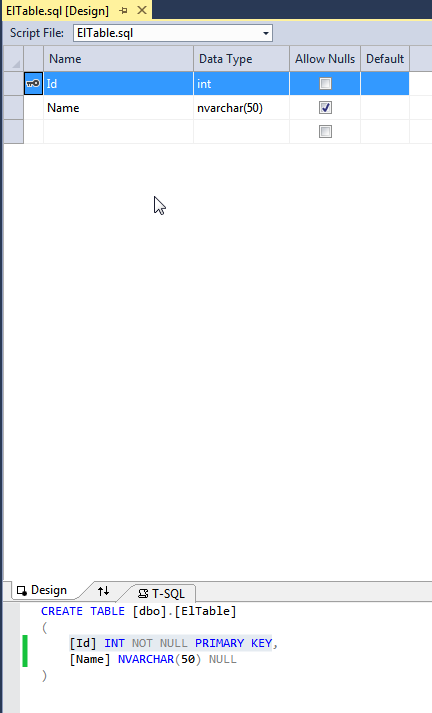
You can now modify your new table with either the designer or with script. Most of you will probably feel more comfortable with the designer portion, and in truth using it is a great way to get used to DML (data manipulation language) if you're not already used to it. Make a change in the designer view, and see what script is generated below it. This script is what SQL Server uses behind the scenes to make the actual database changes, so it's quite helpful to know what it's doing and how it's doing it. In the below screenshot, you can see I've added 2 fields: Id and Name.


Id is an integer and is the primary key field, and Name is just a nullable nvarchar (string) column.

Well that's nifty huh? OK so where's the database that it made? Well, it hasn't actually created a database yet. All this has done is create a script that can setup a database. We still have to publish/deploy this lovely conceptual database before it molts and becomes a real database. First things first though: we need to make sure that our project has the correct version of SQL server selected. These projects can publish to SQL Server 2K8 and up, and it defaults to publishing to the latest which is currently SQL 2K14. Depending on your environment, you may not be working with the latest and greatest.

Right-click on your database in the solution explorer and select "Properties". Select the version of SQL Server that you will end up publishing your database to and save your project. Below you can see my screen where I've set the "Target platform" to SQL Server 2014.


Now that we've made sure we're publishing to the correct version of SQL server, on with publishing the database! In the solution explorer, right-click on your database and select "Publish". A dialog window will come up asking you what server to connect to. Click on the Edit button.


This will bring up another dialog where you can specify your database server connection properties. Enter whatever information you have for the connection. For me you can see it's a local SQL installation on my compie named Peeticus-PC\SQLExpress.


Don't bother hitting "Test Connection", as it will fail. Your database doesn't actually exist yet so it can't connect properly, but that's OK. We're about to create the database. Just hit the OK button when you have your information entered here.

Now back to the first dialog: you have 2 options for deploying the database. You can either click the "Publish" button to have Visual Studio automatically create the database and all of it's structure for you, or you can click the "Generate Script" button which will obviously generate the SQL scripts you need and you can then run them manually to set things up. For simplicity's sake, we'll just have Visual Studio publish the database for us, so click the "Publish" button. If all went well, your "Data Tools Operations" window should have a green success message like the following:

Go ahead and connect to your database server with SQL Server Management Studio (SSMS), you should see your new database along with the table you plopped into it:


You can query your database via SSMS or yell at it or whatever, as it's now a real database.

What's Next?

Next week we'll see how to hook up a database project to an existing database, how to compare your current set of modifications to the target database, and we'll see some advanced options you can set within a database project. 


Resources

SQL Server Database Development in Visual Studio

Wednesday, September 10, 2014

2 Simple Best Practices for C# Database Coding

Intro

In my many years of .Net coding, more than I'd like to admit sometimes, I've seen a number of mistakes over and over again by people who just don't know any better. I've got 2 in particular that I see when people hit databases with .Net code, and I figured hey, I can call these out so people know not to do it! So here they are.

Best Practice 1

Always, under all circumstances, close your connection to the database. This might sound like common sense, but it's not always as easy as just calling connection.Close(). What happens if your code throws an exception between Open() and Close()? If you don't have the Close() in a try finally and if you're not creating the connection in a using statement, you're leaving that connection open. What happens if you leave those connections hanging? My experience is with SQL Server, and with it you end up eating up all the available connections eventually, which means your queries fail because you can't open any more connections. In the case of a website it means you have to recycle the app pool to free up all those connections, which can be a bit annoying for your users. Let's see some potentially bad code in action first:

using System;
using System.Data.SqlClient;

public partial class _Default : System.Web.UI.Page
{
    private void BadSqlConnection()
    {
        var conn = new SqlConnection("some conn string here");
        conn.Open();
        var cmd = new SqlCommand("select * from SomeTable", conn);
        cmd.ExecuteNonQuery();
        conn.Close();
    }

    protected void Page_Load(object sender, EventArgs e)
    {
        BadSqlConnection();
    }
}


See the problem? If the SqlCommand cmd throws an exception of any kind, that SqlConnection stays open, eating up one of the connections in our connection pool. Bad! So what can we do to clean it up? My favorite thing is to use a "using" statement. It accomplishes the same thing a try...finally would, but with less code. Here's a sample of some good code:

    private void GoodSqlConnection()
    {
        using (var conn = new SqlConnection("some conn string here"))
        {
            conn.Open();
            var cmd = new SqlCommand("select * from SomeTable", conn);
            cmd.ExecuteNonQuery();
        }
    }


Using the using statement when we create the connection ensures that the connection will be closed and freed before the method ends, regardless of whether or not any exceptions are thrown. It's conceptually the same thing as a try...finally where the Close() call is in the finally. Neato!

Best Practice 2

SQL injection attacks suck! It's a very common way for chodes to attack your data-driven website. Pretend you have a textbox on your website where people can login via userid and password. You've got 2 entries on your page and a button, one for the userid, one for the password, and the button attempts the login. Maybe your login code looks like this:

    private void DoLoginBad()
    {
        using (var conn = new SqlConnection("some conn string here"))
        {
            conn.Open();
            var cmd = new SqlCommand(String.Format("select * from Users where UserId = '{0}' and Password = '{1}'", UserId.Text, Password.Text), conn);
            var reader = cmd.ExecuteReader();
            if (reader.Read())
            {
                //stuff that logs the user in
            }
        }
    }


What's bad about the above code? Think about what will happen if this value is put in the UserId textbox: "peeticus'--". Looks pretty innocuous right? Absolutely, completely, horribly wrong! Think about what this value does to the query which is sent to SQL Server; it now becomes "select * from Users where UserId = 'peeticus'--' and Password = '[blah]'

The key thing there is that our sql statement is terminated after checking the UserId because of the ending of the string value via the apostrophe, then the double-dash "--" which makes the rest of the line a comment. So, with this fairly trivial attempt somebody could log into your system as any user for which they know the userid. Believe it or not there are much worse things they can do with this tactic too, but we'll save that for another day.

How can you thwart the evildoers? Conceptually speaking you need to filter out bad characters such as apostrophes and maybe dashes, or filter in good characters if you want to be even safer. A better idea though would be to use the built-in sql parameters within .Net so that a well-tested library can do the work for you! Here's the same query from above, rewritten to be resistant to SQL Injection:

    private void DoLoginGood()
    {
        using (var conn = new SqlConnection("some conn string here"))
        {
            conn.Open();
            var cmd = new SqlCommand("select * from Users where UserId = @UserId and Password = @Password", conn);
            cmd.Parameters.Add(new SqlParameter("@UserId", UserId.Text));
            cmd.Parameters.Add(new SqlParameter("@Password", Password.Text));
            var reader = cmd.ExecuteReader();
            if (reader.Read())
            {
                //stuff
            }
        }
    }


All you have to do is replace your concatenated values in the query with a couple parameters using @ symbols, and voila! A couple extra lines of code for a lot more peace of mind.

Thursday, July 24, 2014

NoSQL - MongoDB; Querying Data

Intro

In Part 1 of the series on NoSQL we were introduced to some of the general concepts behind this movement and how some of the technologies work in a general sense. In Part 2 we setup a MongoDB instance and wrote some C# code to insert data into the DB. Here in the final installment of the series we'll cover getting our data back out of the MongoDB instance.

To the Code!

Let's jump on into some code. Open back up the solution file you created back in Part 2, BlogMongo. If you named your stuff the same I did, you can open up default.aspx and default.aspx.cs also as that's where we'll put our code. I'm adding a new button to the form called btnQuery and giving it a new click event, which I'll leave empty for the moment. Now, do you remember this function from last week?

        private MongoCollection GetMongoCollection()
        {
            var client = new MongoClient("mongodb://localhost");
            var server = client.GetServer();
            var database = server.GetDatabase("BlogMongo");
            return database.GetCollection<Stuff>("stuffses");
        }


This is the function we used last week to connect to our database and our collection (table), using the Mongo C# driver. Now let's pull some data out of it; you'll be surprised just how easy this is:

        
        private void QueryStuff()
        {
            var collection = GetMongoCollection();
            var singleQuery = Query<Stuff>.EQ(e => e.SomeInt, 3);
            var stuff = collection.FindOneAs<Stuff>(singleQuery);
            var serializer = new JavaScriptSerializer();
            Response.Write(serializer.Serialize(stuff));
        }


This method pulls a single document/object out of the database and collection and spits it out in the response. The first line of the method just opens up a connection to the database and retrieves a reference to our collection. The second line creates a Mongo query object (you'll have to add a using statement to MongoDB.Driver.Builders). The query object should return object(s) of type Stuff, and the query shall look for an item with a value of 3 for the property SomeInt. The 3rd line tells the collection to pull back a single item of type Stuff that matches the query we created in the previous line. Line 4 creates a javascript serialization object that we're just using to display some friendly output, and line 5 spits out our serialized JSON object to the browser. Yes that's right, 3 lines of code (which we could easily condense further) pulls a specific object out of the database for us. Nifty! Go ahead and call this new method in the click event of your query button so you can see the output. Just in case you're not coding along with me, here's what the output looks like:

{"Id":"d639cae8-906a-4d7c-ab6d-553319a8a70e","SomeInt":3,"SomeString":"yeah, a string","ListOfStrings":["0","1","2"]}

Ok that was some really cool stuff. Almost as cool as an iceberg hitting you in the face! But how do we create some niftier, more complicated queries? Well as it turns out, the Mongo C# driver supports quite a few LINQ operations for data querying so you can have some real fun here! Let's see another example of querying MongoDB data, this time with LINQ:

        private void QueryStuff()
        {
            var collection = GetMongoCollection();
            var singleQuery = Query<Stuff>.EQ(e => e.SomeInt, 3);
            var stuff = collection.FindOneAs<Stuff>(singleQuery);
            var serializer = new JavaScriptSerializer();
            Response.Write(serializer.Serialize(stuff));
            var linqQuery = from item in collection.AsQueryable<Stuff>()
                            where item.SomeString == "yeah, a string"
                            select item;
            foreach (var item in linqQuery)
                Response.Write(serializer.Serialize(item));
        }


Our new code starts on line 6, beneath the prior junk. Line 6 sets up our LINQ query. I'm assuming you're familiar enough with LINQ to either create LINQ queries or google around to figure out how to make them so I won't go into detail on it, but as you can see this query is meant to select all the items from our collection who have a SomeString property with the value "yeah, a string". (Note: you'll need to add 2 more using statements. MongoDB.Driver.Linq and System.Linq). The foreach below it is just our output generation code. Easy, simple, and powerful, that's the best kind of code there is! Here is the new output (note that it includes the prior line of output too, so there's 1 extra object of type Stuff here):

{"Id":"d639cae8-906a-4d7c-ab6d-553319a8a70e","SomeInt":3,"SomeString":"yeah, a string","ListOfStrings":["0","1","2"]}{"Id":"d639cae8-906a-4d7c-ab6d-553319a8a70e","SomeInt":3,"SomeString":"yeah, a string","ListOfStrings":["0","1","2"]}{"Id":"494be80b-5f1a-48c4-9a15-3c01f89d2216","SomeInt":4,"SomeString":"yeah, a string","ListOfStrings":["0","1","2","3"]}{"Id":"a089f1bd-c33b-43ae-9f25-894e0c5e31c2","SomeInt":5,"SomeString":"yeah, a string","ListOfStrings":["0","1","2","3","4"]}{"Id":"097c8d4f-fff4-4daa-a535-75d38fe87199","SomeInt":3,"SomeString":"yeah, a string","ListOfStrings":["0","1","2"]}

That's pretty much all we're going to cover folks! These are just the basics of querying a MongoDB instance, but this will get you pretty far. Here's the complete code file in case you need it:

using MongoDB.Bson;
using MongoDB.Driver;
using MongoDB.Driver.Builders;
using System;
using System.Collections.Generic;
using System.Web.Script.Serialization;
using System.Linq;
using MongoDB.Driver.Linq;

namespace BlogMongo
{
    public class Stuff
    {
        public Guid Id { get; set; }
        public int SomeInt { get; set; }
        public string SomeString { get; set; }
        public IList<string> ListOfStrings { get; set; }
        public Stuff()
        {
            ListOfStrings = new List<string>();
        }
    }

    public partial class Default : System.Web.UI.Page
    {
        private Stuff GenerateStuff()
        {
            var stuff = new Stuff() { Id = Guid.NewGuid(), SomeInt = new Random().Next(0, 10), SomeString = "yeah, a string" };
            for (int i = 0; i < stuff.SomeInt; i++)
                stuff.ListOfStrings.Add(i.ToString());
            return stuff;
        }

        private MongoCollection GetMongoCollection()
        {
            var client = new MongoClient("mongodb://localhost");
            var server = client.GetServer();
            var database = server.GetDatabase("BlogMongo");
            return database.GetCollection<Stuff>("stuffses");
        }

        private void SaveStuff()
        {
            var stuff = GenerateStuff();
            var collection = GetMongoCollection();
            collection.Save(stuff);
        }

        private void QueryStuff()
        {
            var collection = GetMongoCollection();
            var singleQuery = Query<Stuff>.EQ(e => e.SomeInt, 3);
            var stuff = collection.FindOneAs<Stuff>(singleQuery);
            var serializer = new JavaScriptSerializer();
            Response.Write(serializer.Serialize(stuff));
            var linqQuery = from item in collection.AsQueryable<Stuff>()
                            where item.SomeString == "yeah, a string"
                            select item;
            foreach (var item in linqQuery)
                Response.Write(serializer.Serialize(item));
        }

        protected void btnQuery_Click(object sender, EventArgs e)
        {
            QueryStuff();
        }

        protected void btnSave_Click(object sender, EventArgs e)
        {
            SaveStuff();
        }

    }
}


What's Next

There are plenty of other ways to query a MongoDB instance. Play around with it and see what you can find, and read the resource links below. The Mongo C# LINQ tutorial and the Mongo C# Driver Getting Started pages are both very handy. This is my last blog on NoSQL (at least for now) though, so we'll be on to a different topic next week. If you want further NoSQL knowledge, then you're on your own buddy!

Resources

MongoDB C# Driver LINQ Tutorial
MongoDB Getting Started With the C# Driver

Thursday, July 17, 2014

NoSQL - MongoDB; Setup and Saving Data

Intro

In the previous post in this series I covered the basics of NoSQL data stores. I briefly mentioned MongoDB and its home in the NoSQL world as a document store. This week I'll go over some of the basics of using MongoDB in your c# code. Hold onto yer hats folks, we're in for a ride!

Setting up Mongo Locally

Go to the MongoDB download page, download and setup the correct version of Mongo for your OS. The instructions on their site are better than anything I can write, so do what they say and you'll be fine :). Be sure to actually run the MongoDB system after you install it (there are instructions for running the program on their website too), as it's pretty tough to connect to a database that isn't running.

A Free MongoDB GUI

MongoDB does not come with a GUI. If you've got a SQL Server background you've probably become accustomed to visualizing your data using SQL Server Management Studio, as it's a very handy GUI for navigating around your data. Mongo does have a couple options, they just don't come with MongoDB. For this tutorial, I'll be using MongoVue, which I suggest you download too for your own usage. I won't get into general usage of this program as it's pretty easy and it's detailed nicely on their website.

A Quick Bit of Mongo Terminology

If you have a SQL background you're well on your way to understanding how a MongoDB server is organized. The only thing that may throw you off initially is Mongo doesn't use tables. The closes thing they have is a Collection, which is roughly akin to a table. You're supposed to store only a single type of object within each collection, though it's not enforced. Still, it's a good idea as it keeps your data organized.

Saving Data

OK then cool cats, it's time to fire up Visual Studio and play with Mongo. Create yourself a new webforms project. I called mine BlogMongo, but call yours whatever you like. Now go into NuGet package manager and install the package "mongocsharpdriver" into your project. This NuGet package contains everything you need to read and write data using MongoDB and C#. It's the official package listed on the MongoDB site, so it's my preferred option though there are others out there.

Drop a server-side button on your webform.Call the button btnSave. Add a click() event to it.Add a couple using statements too; one for MongoDB.Bson and one for MongoDB.Driver. Now I'll work a little coding magic, paste it in here, and discuss below:

using MongoDB.Bson;
using MongoDB.Driver;
using System;
using System.Collections.Generic;

namespace BlogMongo
{
    public class Stuff
    {
        public Guid Id { get; set; }
        public int SomeInt { get; set; }
        public string SomeString { get; set; }
        public IList<string> ListOfStrings { get; set; }
        public Stuff()
        {
            ListOfStrings = new List<string>();
        }
    }

    public partial class Default : System.Web.UI.Page
    {
        private Stuff GenerateStuff()
        {
            var stuff = new Stuff() { Id = Guid.NewGuid(), SomeInt = new Random().Next(0, 10), SomeString = "yeah, a string" };
            for (int i = 0; i < stuff.SomeInt; i++)
                stuff.ListOfStrings.Add(i.ToString());
            return stuff;
        }

        private MongoCollection GetMongoCollection()
        {
            var client = new MongoClient("mongodb://localhost");
            var server = client.GetServer();
            var database = server.GetDatabase("BlogMongo");
            return database.GetCollection<Stuff>("stuffses");
        }

        private void SaveStuff()
        {
            var stuff = GenerateStuff();
            var collection = GetMongoCollection();
            collection.Save(stuff);
        }

        protected void btnSave_Click(object sender, EventArgs e)
        {
            SaveStuff();
        }

        protected void Page_Load(object sender, EventArgs e)
        {
        }
    }
}


You'll see after the using statements, the first thing we've done is add a class called Stuff. This is just our POCO (plain old CLR object) that we'll store in the database. The GenerateStuff() method within our page merely creates an object of type Stuff and puts some data in it.

GetMongoCollection() is where things start to get interesting. The first line in the function gets us a reference to an MongoClient object, which is how you connect to a Mongo database. The code is connecting to the local installation we did up above. Line 2 of the method gets a reference to the Mongo server. In this case it's the same machine, but hey we need an object. Line 3 gets a reference to a database named BlogMongo within the Mongo server. Those of you reading carefully might be thinking "uh...Pete, forget something? Like maybe creating the database?". Nay friends, nay! I forgot no such thing! Call it a feature or call it a piece of kryptonite, but Mongo will create a database automatically the first time you save some data into it. So, even though this database doesn't yet exist, we can reference it. Neato! Line 4 retrieves from the database a collection (or table if you'd rather) named stuffses. Note that this collection doesn't exist yet either; the same rule for database creation applies to collection creation.

The next interesting method is SaveStuff(). It's pretty compact at 3 lines, and the 3rd line is the only really new bit of awesome. This uses our collection reference that we created above and calls its Save() method in order to save our stuff object which is of type Stuff. The Save() method is used for an upsert. There are separate Insert() and Update() methods, but I prefer to use this multipurpose method.

Now, just to prove the magic is still alive in my relationship with the code, I ran this little fella and clicked the button 4 times. Here is the representation of our data in MongoVUE:


A quick note on the storage behind MongoDB: MongoDB stores its data in BSON format, which is Binary JSON. It's just a flavor of JSON with a little bit of extra bells and whistles. That's why, in the above screenshot of MongoVue, I elected to show you the JSON representation of our stored objects. JSON is a pretty universal communication mechanism these days, so getting used to seeing it an using it can only benefit you.

Ok one last quick note, then I'm done noting. Really: See how there is no field named Id in my stored objects in that MongoVue screenshot, even though there is a field in the class Stuff named Id? This is because the Mongo C# driver will automatically use any field named Id as your primary key/id field, which is how documents are identified within the MongoDB database. MongoDB however stores such fields with a name of _id unless you specify otherwise, so in this case the field Id (which is a useful standard, so name your Id fields this if you can) maps to _id in the MongoDB database.

What's Next?

Next week will be the final installment of NoSQL/Mongo. I'll show you guys how to query data. Maybe a few other tricks too if I have the time and we have enough space on the blog post.

I encourage you to read up on using the Mongo C# driver using the link in the resources section below.We only scratched the surface this week, and we'll lightly gouge it next week. There's still plenty we won't have time for though, so if you like MongoDB and you want to learn more, their website is the best place to get into it.

Resources

MongoDB-Getting Started With the C# Driver

Thursday, July 10, 2014

NoSQL - A Brief Introduction

Intro

What is a NoSQL Database? It's generally considered to be a data storage system that doesn't use relational tables and isn't accessed by structured query language. For decades now SQL and relational tables have been the standard for data storage. SQL storage, or more generally speaking relational storage, is driven by the concept of denormalization of data to reduce redundancy. You have many tables representing a structure of objects/entities, and you can join those many tables together to bring back the entire picture of your data and objects.

Why has NoSQL Become Big News?

Some larger companies such as Facebook, Twitter, and many others have found that modeling their data using a relational database system just wasn't fast enough and didn't scale well with load, and it is quite complex to the casual observer. And, the part I've found most tiresome in my own work, a relational database enforces a rigid scheme. Have you ever spent much time mapping a huge object tree to the tables and columns behind it? It's not terribly fun.

The big relational database systems have spent a lot of time and money optimizing their systems, but at a certain point they become constrained by the disk system behind them. Once your disks are your bottleneck, the only options are to get more expensive and faster storage subsystems (ie faster drives or a faster/better SAN-type system). Plus, if you have a complicated object hierarchy with many levels and relations to model, you have more and more tables to model which means more joining of tables and more processing/disk hits to get your data. There are coding frameworks for dealing with the mapping side of things, such as Entity Framework, but the complexity of the mapping is still there; the tedium is just automated for you.

Types of NoSQL Databases

NoSQL systems have been created with the idea of tackling these problems in various ways. Now this doesn't mean that relational databases are obsolete; rather, with the growing maturity and popularity of various NoSQL platforms, you have more options available to research and choose from. As with many technologies, the more you learn the better decisions you can make so I encourage you to keep reading and see if you can think of some ideas of how you might use NoSQL in your own projects.

There are many different types of NoSQL databases, but I will only give a brief overview of three of them:

  1. Document Store: The general concept behind a document store is that objects/entities are represented in the underlying storage mechanism with a "document". Generally speaking you are encouraged to store your entire object (and all it's children, and all it's children, etc) in a single document. These documents are in various formats depending on the vendor. You might see JSON with one vendor, BSON with another, XML, etc. If you've ever exported an object to JSON, you can visualize a document store roughly as a collection of JSON exports (serialized objects) on a disk system, that you can query with some sort of vendor-proprietary query language. 
    1. Benefits: The perceived benefits of a document store over a relational store are, of course, dependent on how you use the system. Imagine if you have a fairly simple base storage object (a Chair) with 7 child objects (5 wheels, a single bolt, and a single arm; not a comfortable chair I know). Now mentally compare loading this from a relational database with loading it as a single JSON document. To load from a relational database you have to join together (or query separately) 8 different tables. This means at least 8 separate hits to your underlying disk storage system, probably more with indexing. To load the same object from a document store? The object and all of its children are stored in a single document, so you have 1 disk operation. Oh and did I mention that it almost eliminates object-->storage mapping problems? Because you are, for the most part, just serializing your object to some form of document and saving that whole thing, you don't really care what's in that document. It's all taken care of for you. No mapping!
    2. Pitfalls: These can of course vary based on the vendor, but in general you have to have a good idea up-front of what you are going to want to do with your data further down the road or you will end up with a lot of duplicated data that is hard to maintain. Let's say for example that within the arm sub-object of the chair you store the name of the arm's manufacturer. If you have 20 chairs in your database, that's ~20 references to the name of this manufacturer (assuming all 20 chairs use the same type of chair arm) in your storage system. What if the manufacturer changes its name? You now have to go and modify all 20 of the chairs/arms in your storage system. In a relational system with a normalized structure, you modify the one chair arm entry as it's just a single row in a table of chair arms. So, a general rule with document stores is they're best-used when your top-level object is what you care about. If you care about treating lower-level objects as primary citizens of your project ecosystem, you should consider other alternatives. (tip: you can in fact have multiple types of collections of objects in a document store and relate them to each other, but that's a topic for another day).
  2. Graph: The big idea behind a graph database is that it allows for a more efficient modeling of relationships between objects. Every element has a direct link to adjacent elements, and through some magic I don't quite understand this means you don't need to have foreign keys and indexes on them. Thus, lookups of relationships are quite fast. Where might this be useful? Social relationship mapping (I'm talkin bout you Facebook), transportation, etc. 
    1. Benefits: Clearly the benefit here is for representing entities/objects that are tightly related and need to be referenced together with their relations. The specific improvement here is speed. A side effect of the better performance is that they will also scale better (continue to have good performance) even as the data set grows much larger.
    2. Pitfalls: Relational databases are, in general, going to be better at performing summary/group calculations and updates of large amounts of data at the same time. Be sure you're using the right tool for what your system needs to accomplish.
  3. Key-Value Store: As the name implies, a key value store represents the stored entities as a list of key/value pairs. For those of you familiar with the .net world, think of the dictionary class. The key is some sort of value that uniquely identifies the data/value, and the value is whatever you want it to be. Serialized object, an int, whatever. A Key-Value store is almost like an even simpler version of a document store. With a document store the database doesn't care what the structure of your document is, but the document does have a structure and the database can (most of the time) query against it. With a key-value store, the database doesn't know or care what's in there and you can't query on it. You can only pull up a value by key, that's it. Nothing fancy.
    1. Benefits: Very simple and very flexible in terms of what you can store. Because there is no structure whatsoever to the data, you can put whatever you feel like in the value portion of a key-value store.
    2. Drawbacks: Inflexible in terms of how you retrieve data. You'd better be sure you don't need to write any ad-hoc queries on your data, because you can only load a value or not; that's it.


My Experience


I myself have a very limited exposure to NoSQL databases. In fact, I've never used one in production, and I've only spent a few hours developing with them on personal projects. So far my experience with NoSQL has been limited to two specific document store databases, Couchbase and MongoDB.

In general, I have to say I have found both of them quite easy to develop with. Querying data from them is relatively straightfoward, though if you're used to SQL you will have to learn new syntax and all that jazz; sorry. Setup is usually pretty easy, though due to a rather nasty bug at the time I was using Couchbase, MongoDB proved much easier to get up and running consistently in a Windows development environment.

The most useful piece of advice I can give regarding NoSQL databases is: read up about them through some google-fu, learn how they work, and research how others have used them with both good and bad results. Then see if and how you can apply them to what you do. They do have their uses, but be careful and ask for advice before implementing.


Resources


NoSQL
Document Oriented Database
Graph Database
Key-Value Store